Import and export
Contacts
Import
- In Contacts, choose the destination address book (usually Personal Addresses).
- Click Import.
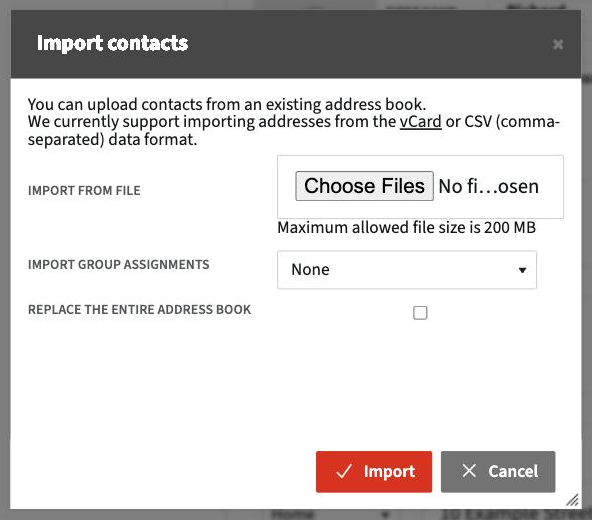
- Choose the file. vCard (.vcf) and CSV formats are accepted. The maximum size is shown in the window.
- In Import group assignments, choose whether to keep the groups in the file.
- Tick Replace the entire address book only if you want to delete the current contacts and keep only those in the file.
- Click Import.
To bring contacts from another service, export them as vCard first: in Google Contacts, Export > vCard; in Outlook, save the contacts as .vcf or export to CSV.
Export
Click the arrow next to Export and choose to export all contacts or only the selected ones. A vCard file (.vcf) is downloaded, which you can import into another program or keep as a backup.
Calendars
- In Calendar, click the pencil next to the calendar.
- Open the Import / Export tab.
- Use Import from file to load events from an iCalendar (.ics) file, or Export to file to download all the events in that calendar as .ics.
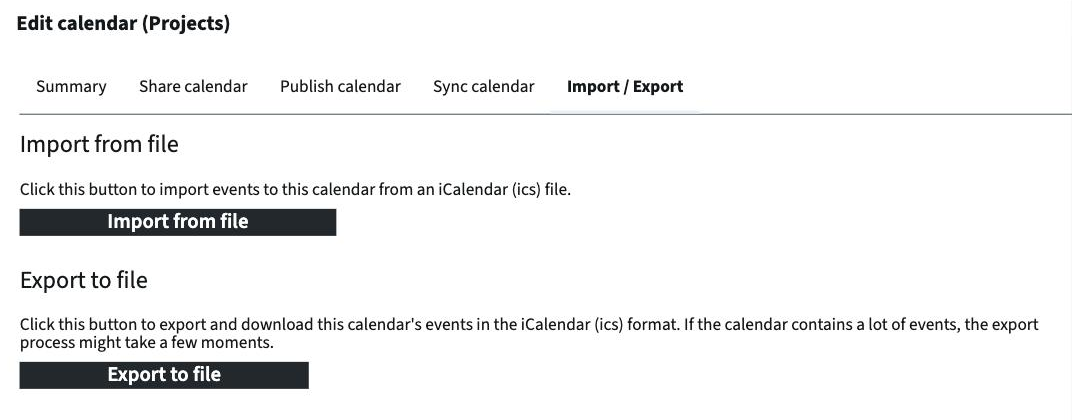
Exporting a calendar with many events may take a few moments.