Compose, reply and attachments
Write a new message
- In webmail, click Compose (top left).
- In To, type the recipient's address. Webmail suggests addresses from your contacts as you type; press Enter or a comma to confirm each recipient.
- Use Copy (Cc) and Bcc, to the right of the To field, to add recipients in copy or in blind copy.
- Fill in the Subject and write the message. The editor toolbar offers bold, lists, alignment, colours and font changes.
- Click Send.
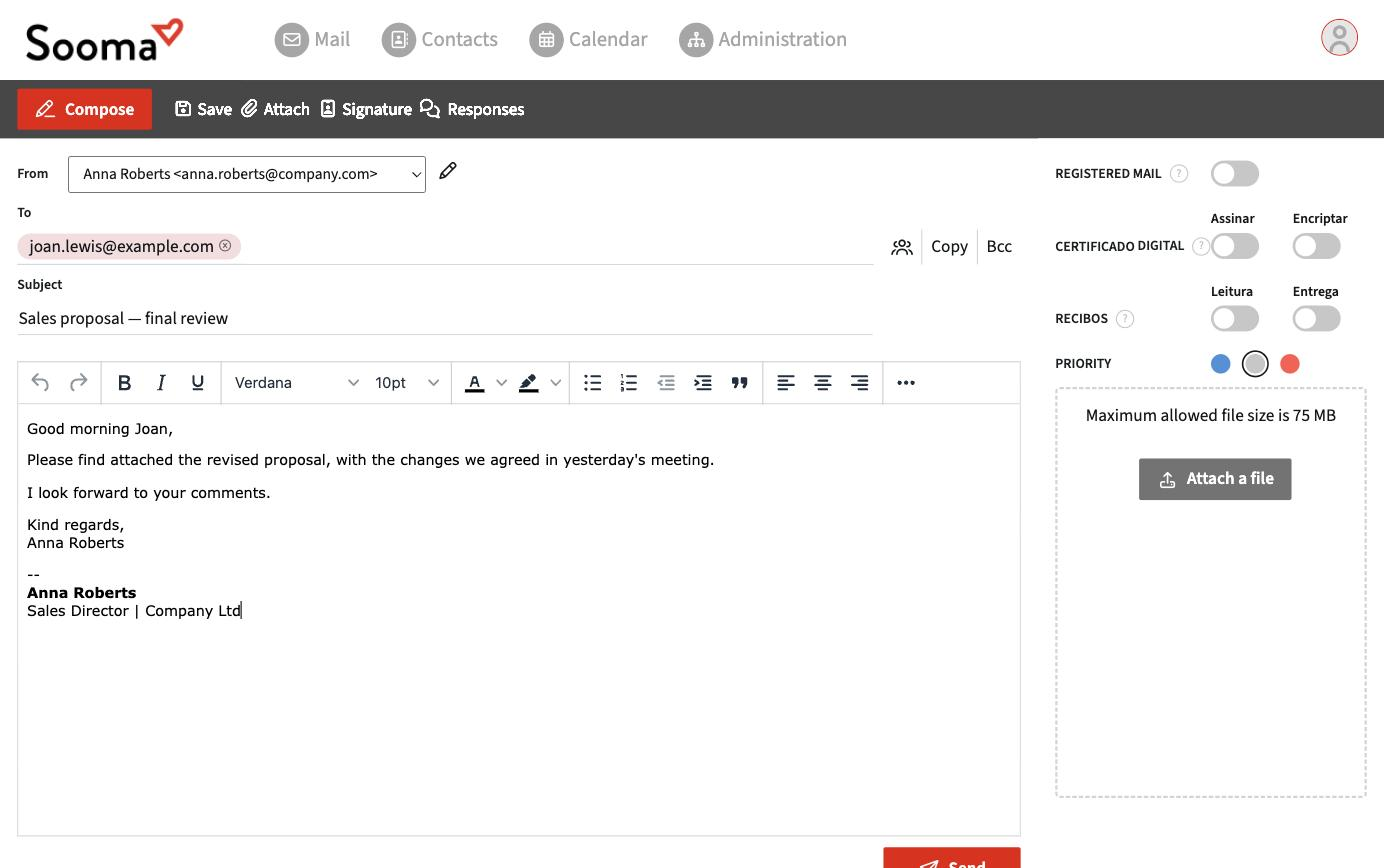
If you have more than one address (identity), choose which one to send from in the From field. See Identities and aliases.
On the right of the window you will find options for the message:
- Registered mail — sends the message as registered email, with proof of sending and delivery.
- Digital certificate (Assinar / Encriptar) — signs and/or encrypts the message with your S/MIME certificate, if you have imported one under Preferences > Certificates.
- Receipts (Leitura / Entrega) — requests a read receipt and/or a delivery notification.
- Priority — low, normal or high.
Note
Some of these option labels are currently shown in Portuguese even with the interface in English.
You can save the message as a draft at any time with Save, insert your signature with Signature and use predefined texts with Responses.
Attach files
Click Attach in the top bar or Attach a file in the area on the right. You can also drag files from your computer straight into that area.
The maximum size allowed per attachment is shown in that same area (currently 75 MB). Bear in mind that many receiving servers reject large messages even below this limit. For large files, share a download link instead of attaching them.
Reply and forward
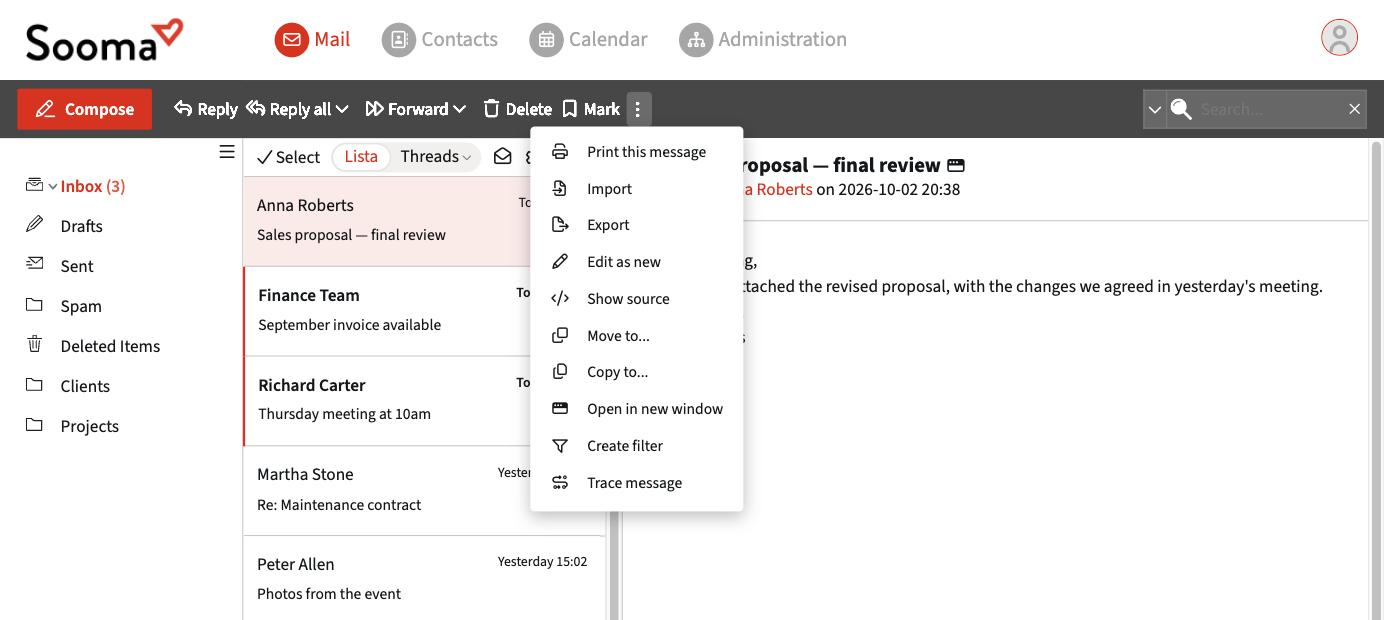
Open the message and use the buttons in the top bar:
- Reply — replies to the sender only.
- Reply all — replies to the sender and all recipients. The arrow next to it lets you reply to the list only, when the message comes from a mailing list.
- Forward — sends the message to someone else. The arrow next to it lets you forward inline or as an attachment.
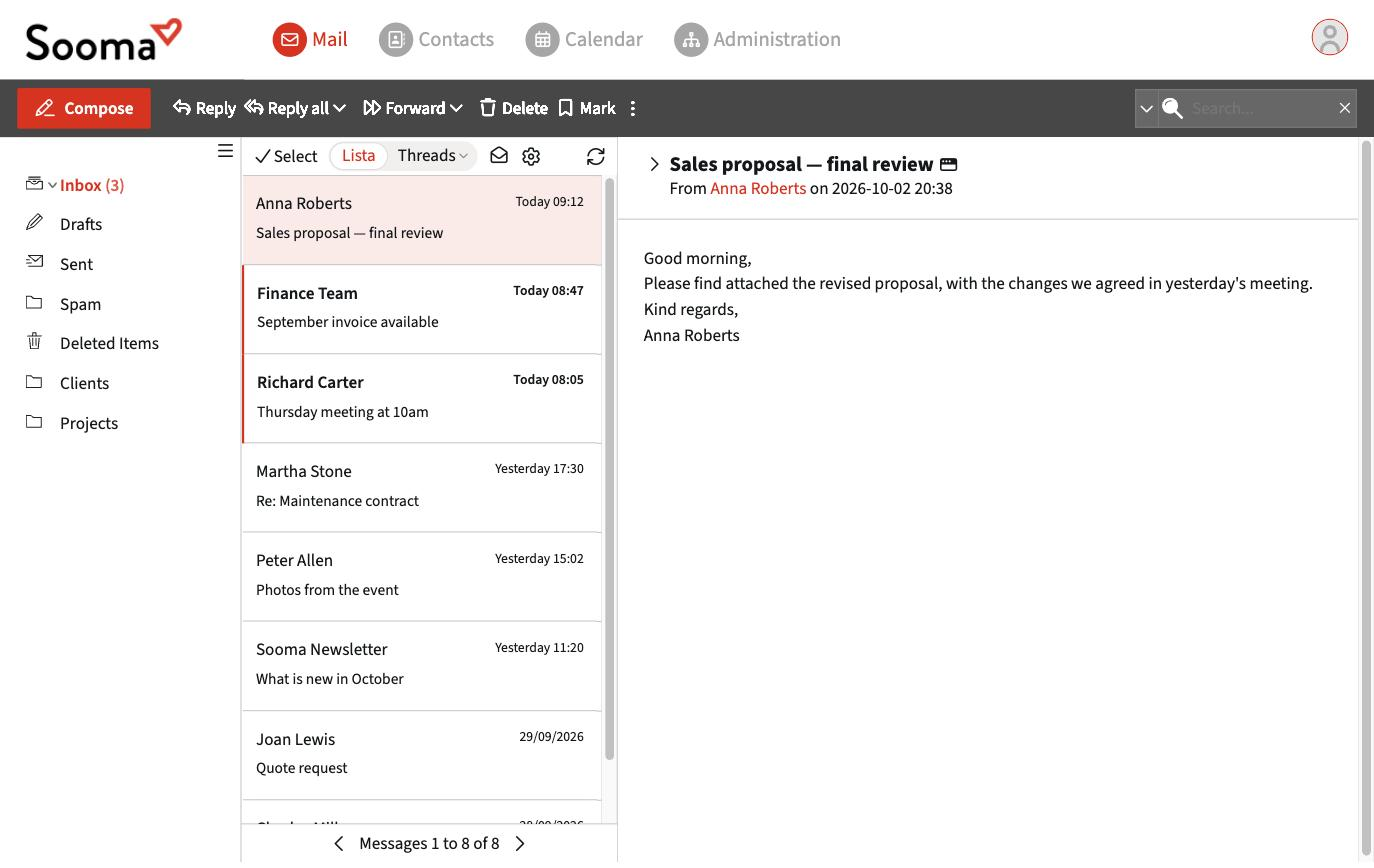
In the ⋮ menu (more actions) you will also find Edit as new, useful to reuse a sent message as a template, Print this message, Show source and Trace message, which opens the delivery logs for that message.