Back up with Outlook (.pst)
You can keep a local copy of your messages in an Outlook data file (.pst), for example as a historical archive before cleaning up your mailbox, or to take your data with you when the service ends.
The archive is only on your computer
The .pst file is not stored on Sooma's servers. Keep it in more than one place (for example, an external drive and another safe location) and check from time to time that the drives still work.
You need an Outlook already set up with the account you want to archive. See Set up Outlook 2016 and later.
Create the archive
-
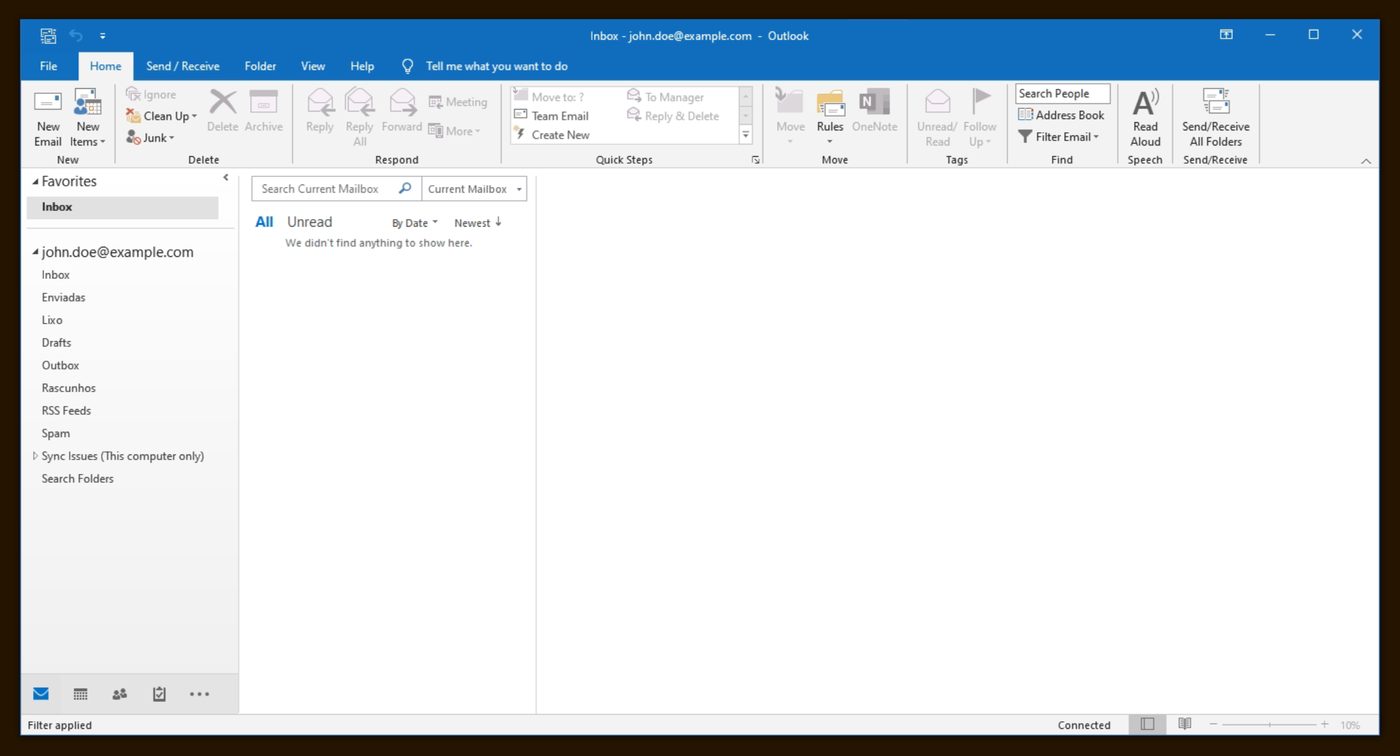
Click File.
-
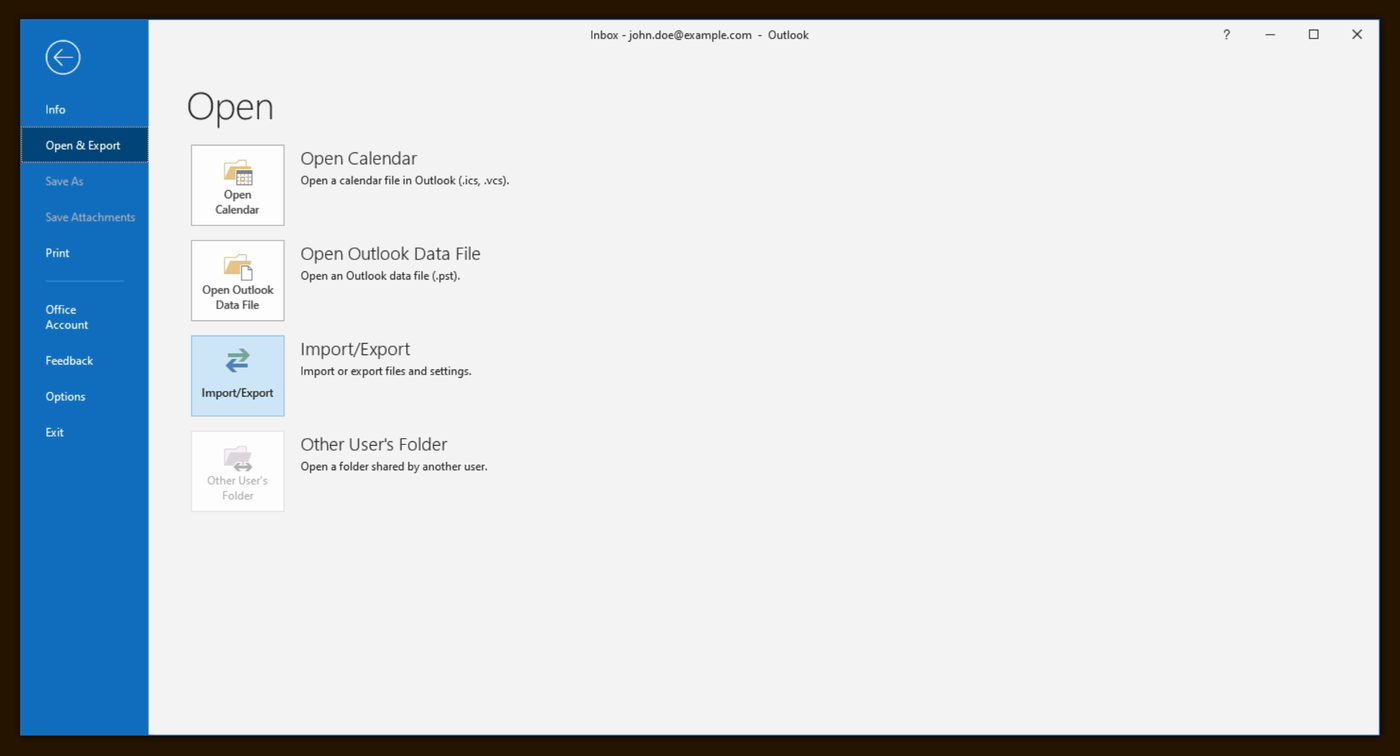
Choose Open & Export and then Import/Export.
-
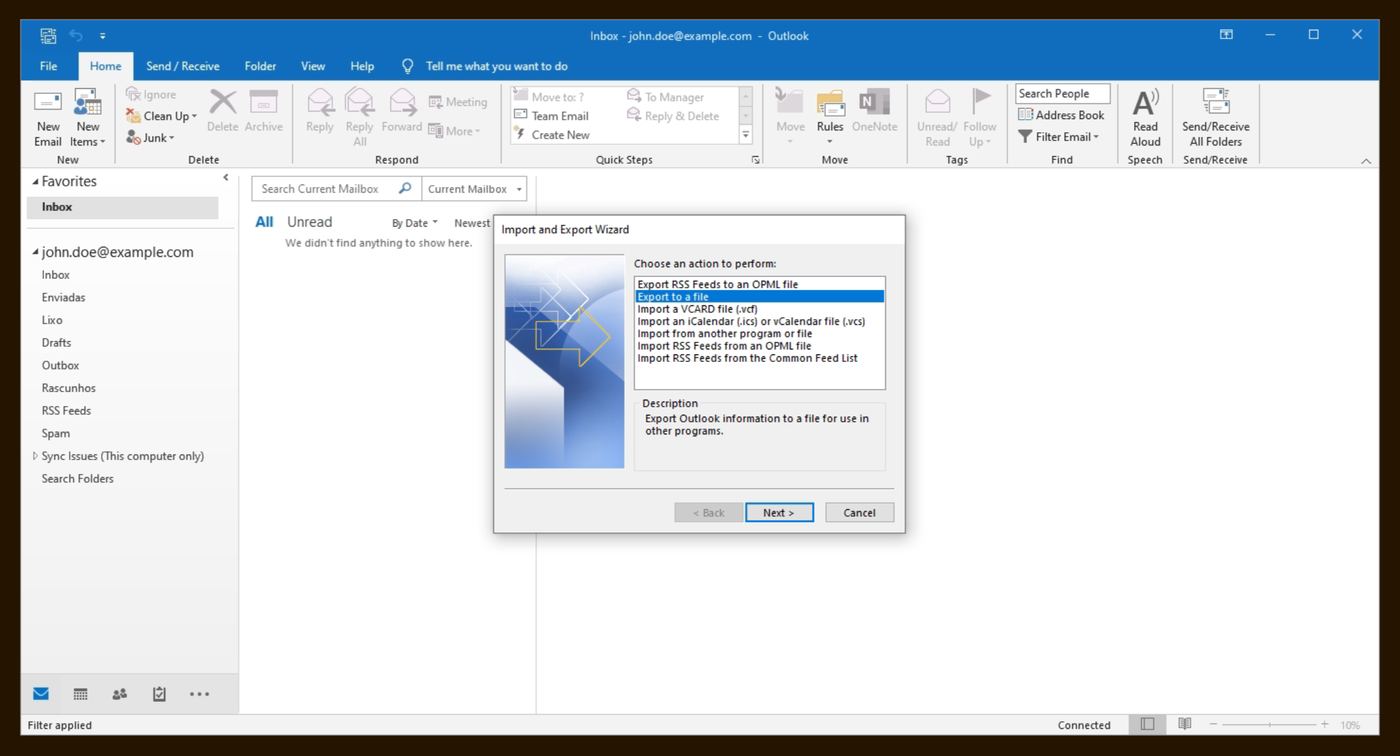
In the wizard, choose Export to a file and click Next.
-
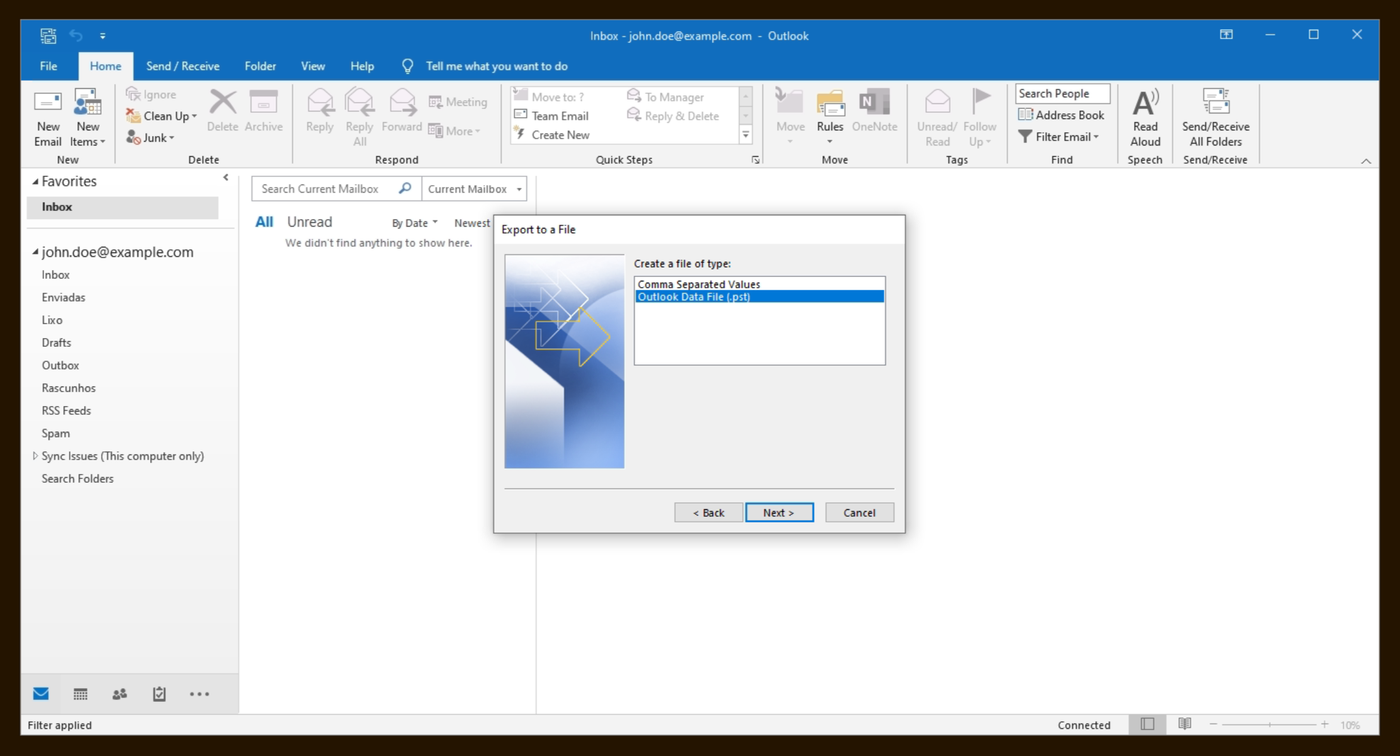
Choose Outlook Data File (.pst) and click Next.
-
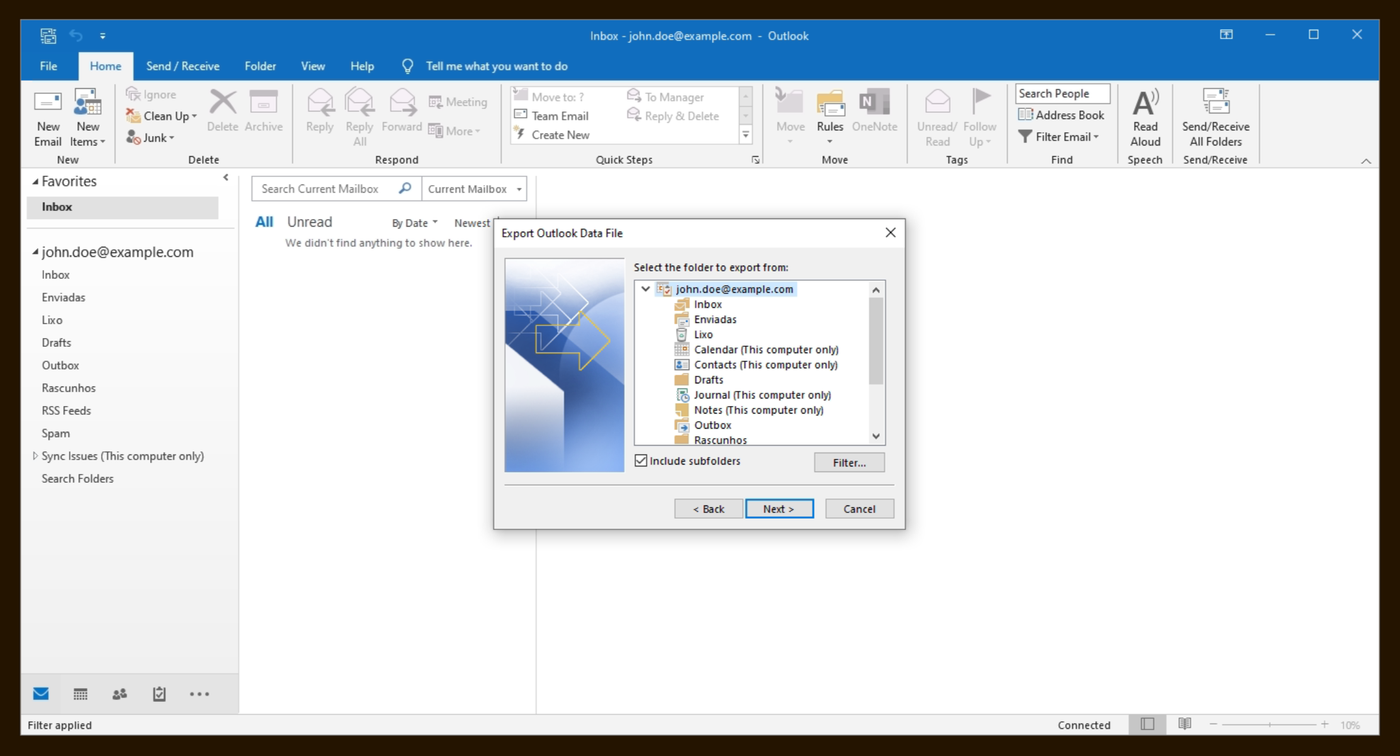
Choose the top folder of the account, usually named after your email address, leave Include subfolders ticked and click Next.
-
Under Browse, choose where to save the file and click Finish. If you are asked for one, the file password is optional; if you set it, keep it safe, because you cannot open the archive without it.
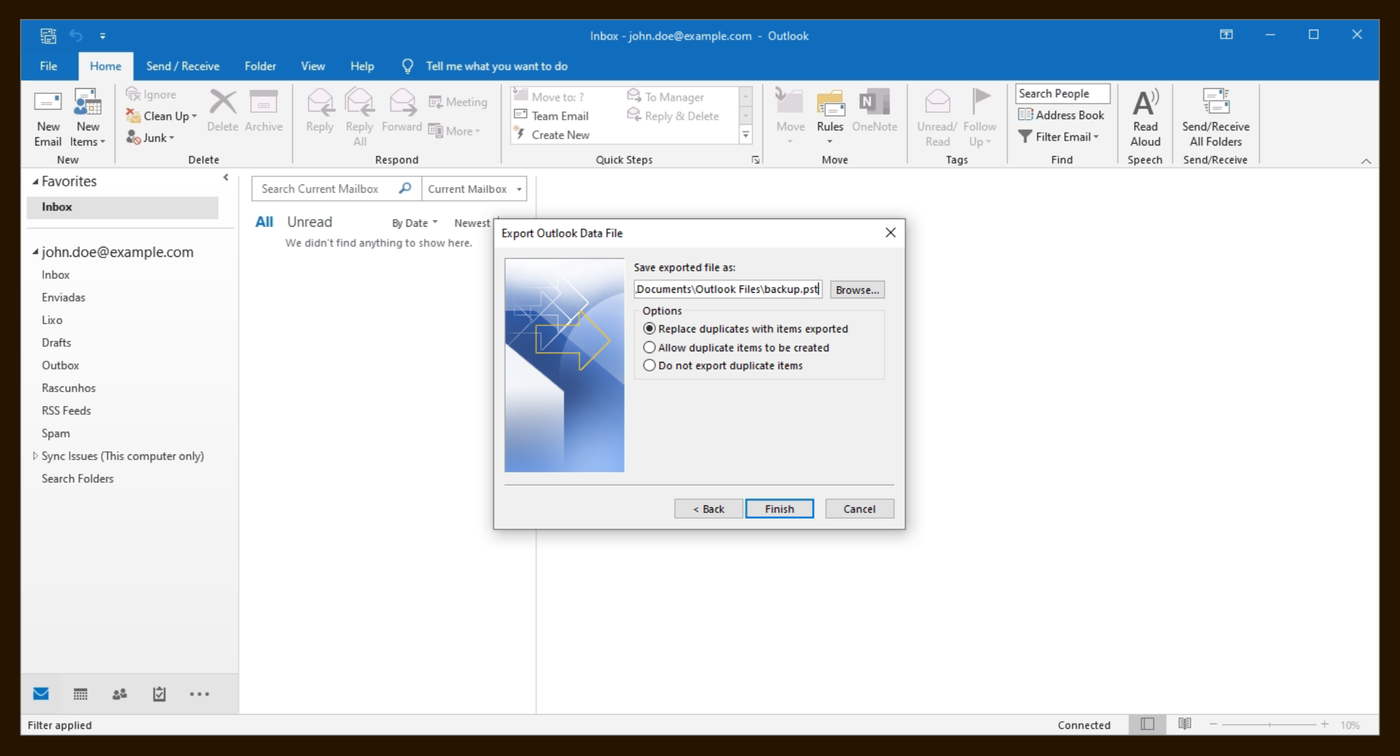
The export can take a while, especially for large mailboxes. When it finishes, the .pst file is in the location you chose.
Open an archive
You can open the archive in any Outlook:
-
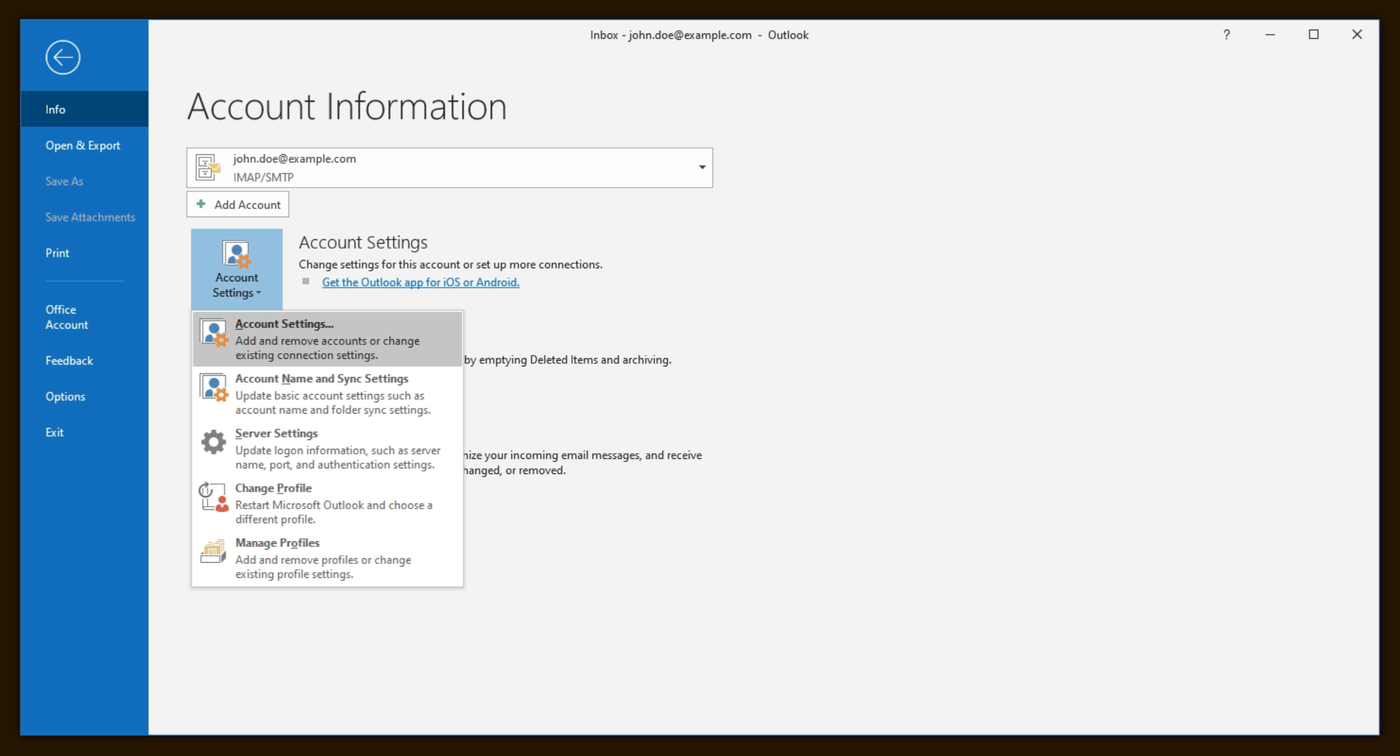
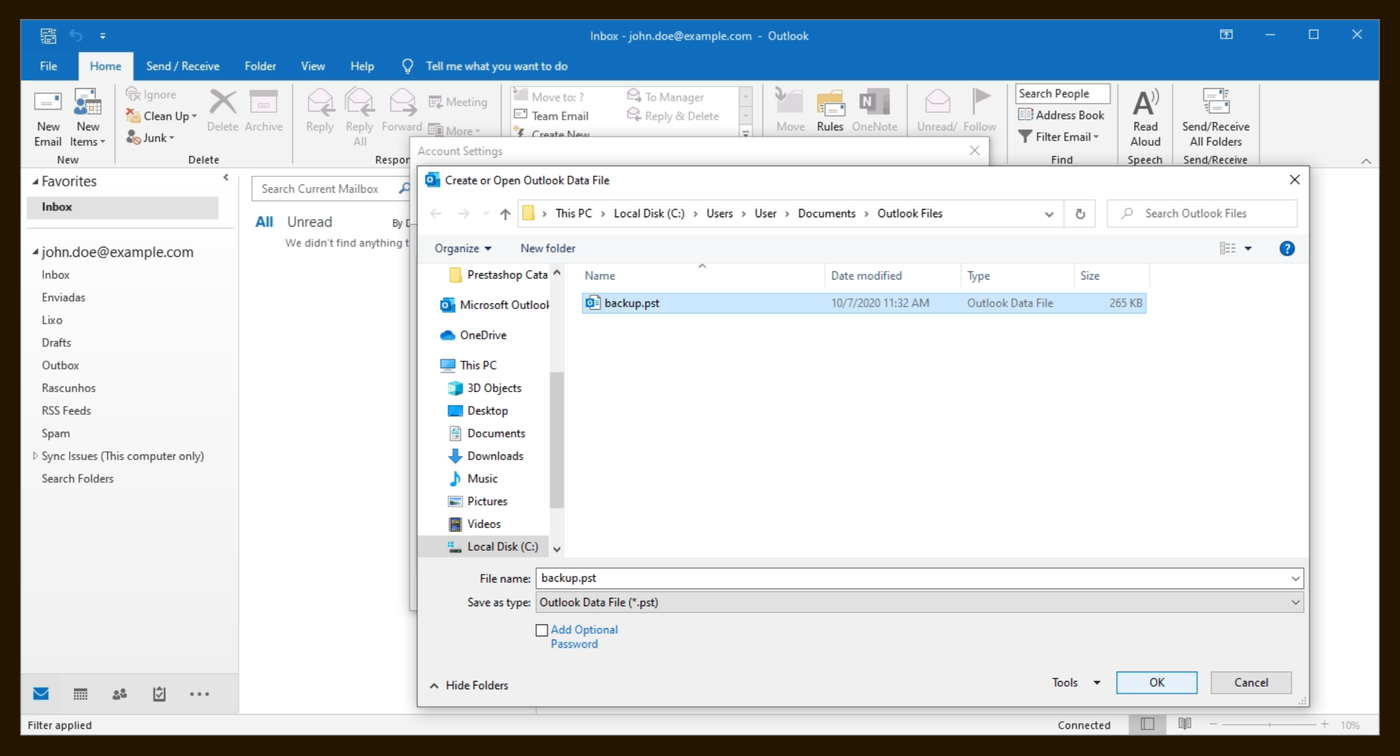
Click File, then Account Settings and Account Settings… in the menu.
-
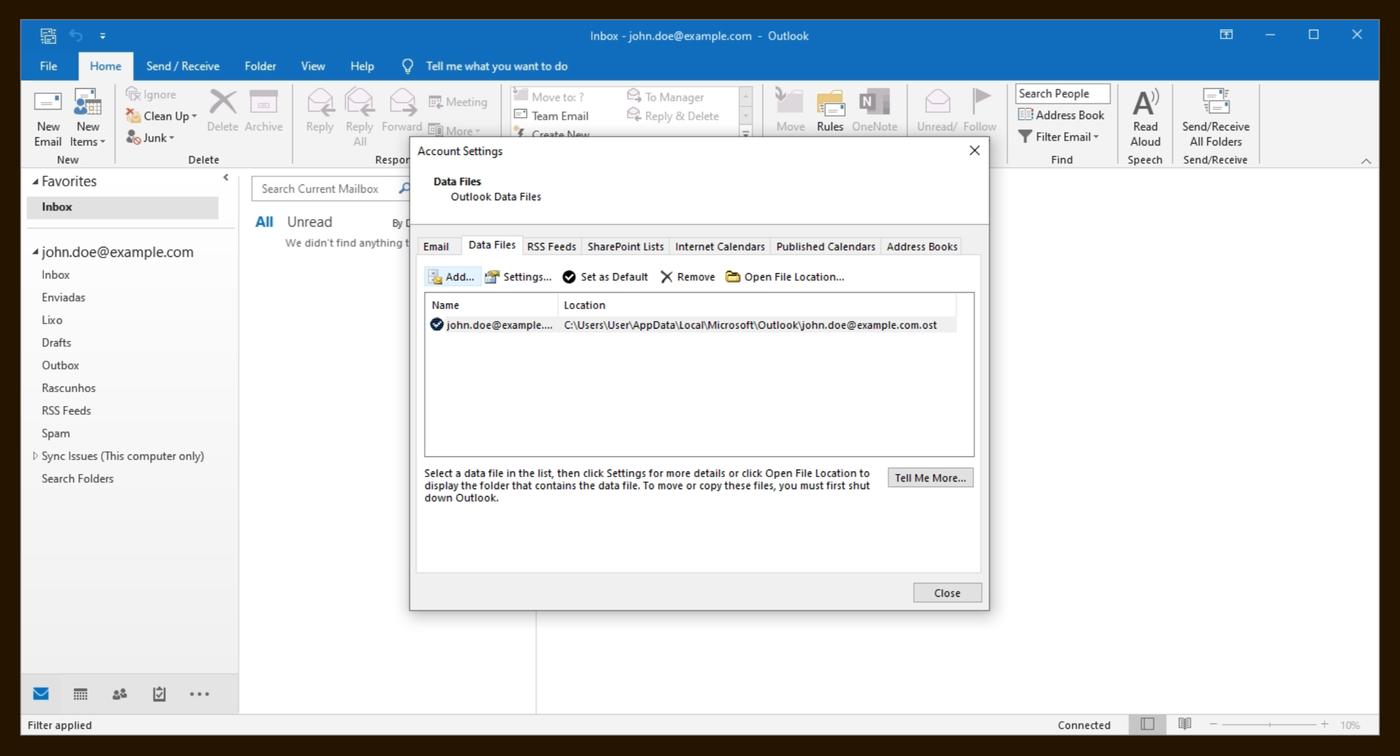
On the Data Files tab, click Add.
-
Choose the .pst file and click OK.
-
The archive appears as a new entry in the folder list on the left.
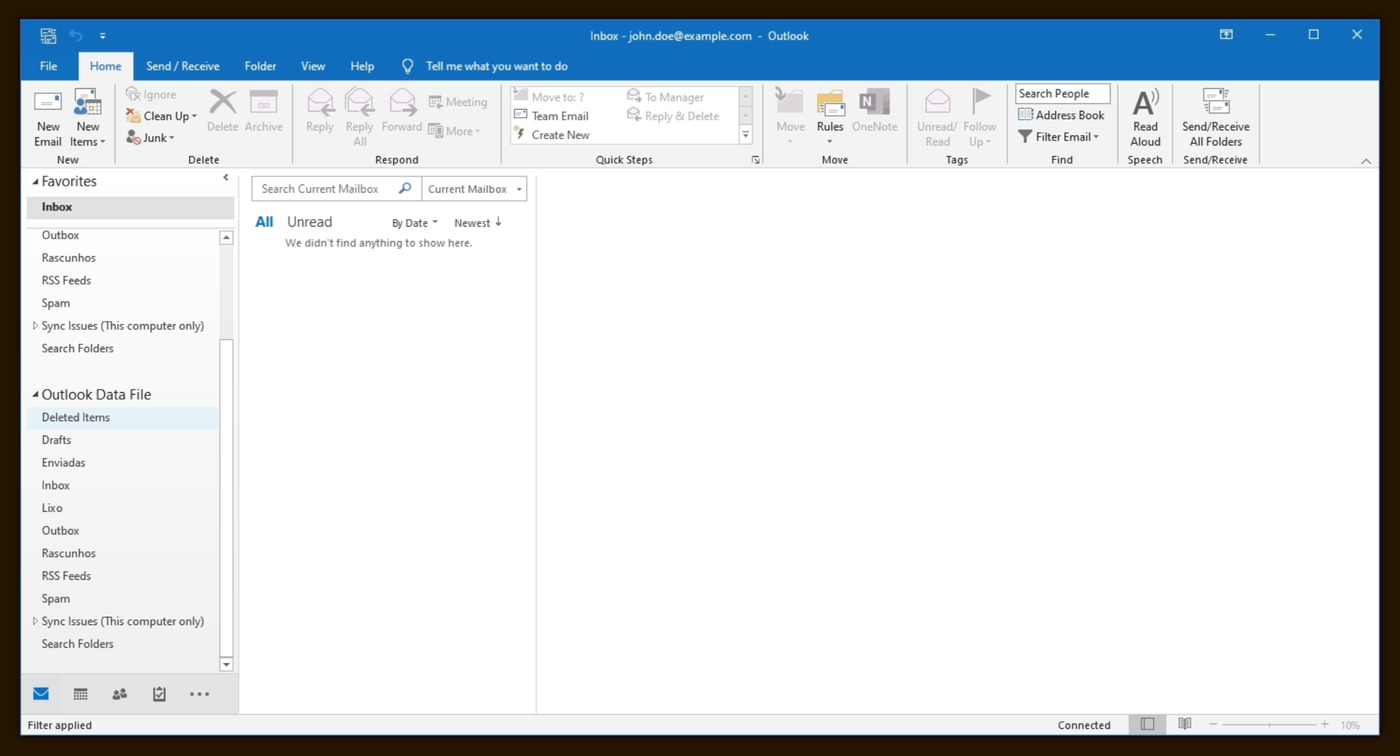
Messages in the archive stay only on the computer: they do not count towards the mailbox quota and do not appear in webmail or on your phone.
Putting messages back in the mailbox
To make archived messages available on all your devices again, drag them from the archive into a folder of the account, or send us the file and we will import it. See Old mail backup.