Remote Support
Download the application
If you are starting a remote support session, you received instructions from a Sooma support agent that brought you to this page. The first step in enabling remote access is to download the Sooma Suporte Remoto application. No installation is required: just download and run it.
Click the button matching your operating system:
Windows
macOS
Pick the version that matches your Mac's processor. To check, open the Apple menu → About This Mac: if it says "Chip Apple M1/M2/M3/M4", use the Apple Silicon version; if it says "Processor Intel", use the Intel version.
Download for Mac (Apple Silicon) Download for Mac (Intel)
Linux
Download for Linux (x86_64) Download for Linux (ARM64)
All files are also available in the downloads folder.
Run the application
- Windows — Open
sooma-suporte-remoto.exefrom the browser's downloads bar or from your Downloads folder. If Windows shows the warning "Windows protected your PC", click More info and then Run anyway. If Windows Firewall asks whether to allow networks to access the application, you can click Cancel: the connection still works. - macOS — Open the
.dmgfile and double-click the Sooma-Suporte-Remoto application. On first launch, macOS asks whether you want to open an application downloaded from the Internet: click Open. When prompted, allow Screen Recording and Accessibility — without these permissions the agent cannot see or control your screen. - Linux — Make the file executable (
chmod +x sooma-suporte-remoto-*.AppImage) and run it.
The application is not installed on your computer: once you close it, nothing keeps running.
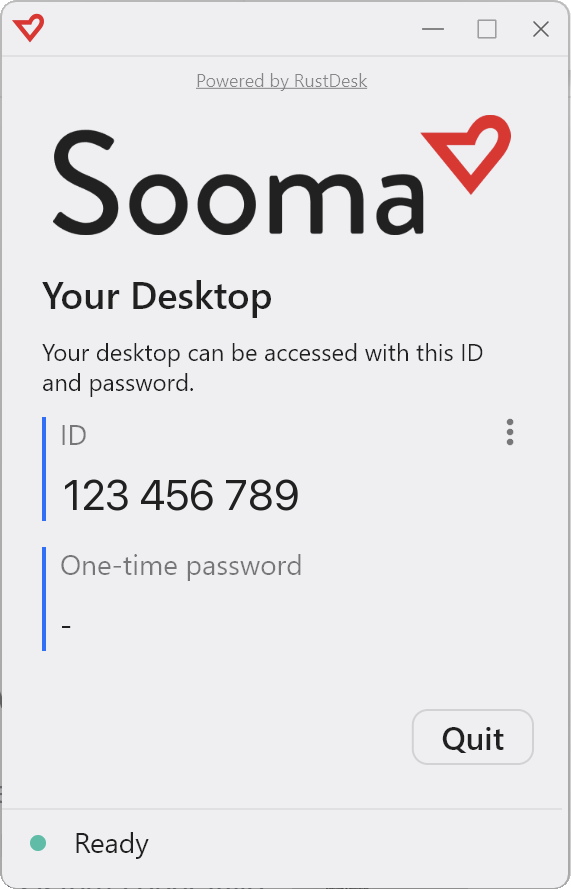
The window with your connection details appears, showing your ID.
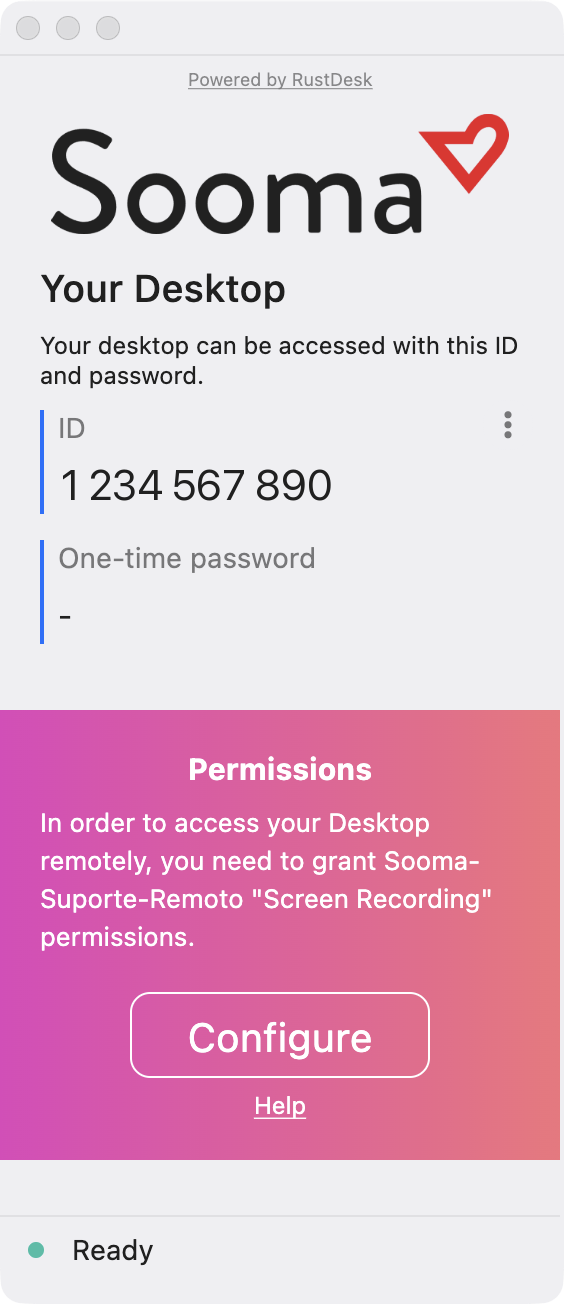
On macOS, until Screen Recording is allowed, the window also shows a Permissions notice: click Configure and enable the application in the list.
Authorise the Sooma support agent
Read the ID shown in the application window to the agent over the phone. When the agent tries to connect, a confirmation window appears: click Accept. Without your confirmation, nobody can connect.
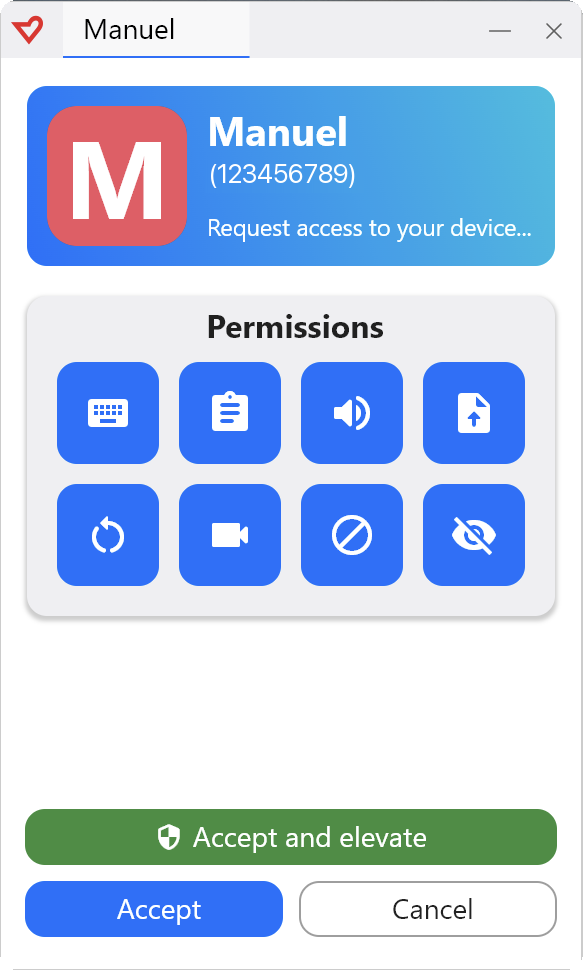
On Windows there is also an Accept and elevate button: use it only if the agent asks you to, so they can handle windows that require administrator permissions.
From this point on, the support agent has remote access to your computer until the connection ends. The connection is terminated remotely when the support call ends, or you can end it at any time by closing the application.
Security
The connection is end-to-end encrypted and goes exclusively through servers managed by Sooma. The application only accepts incoming connections — it does not allow anyone, including you, to access other computers — and no connection is established without your explicit acceptance.